The smallest export is not always the best export. If a product label becomes unreadable or a dark scene falls apart, you have saved data by making the video less useful. The aim is to remove waste while keeping the detail your viewer needs.
This guide covers video embedded in websites and apps. We made three real encodes of the same short sample to show how to compare file size responsibly. It is a local encoding exercise, not a speed test or a measurement of Vidreno's delivery service.
Will reducing the file size actually reduce your bill?
A smaller delivered file can reduce usage on a byte based plan, but the effect on money depends on the contract. Start with the unit on your bill, not the size shown in your editing software.
| Your charging model | What fewer delivered bytes can change | What to check |
|---|---|---|
| Payment per GB delivered | The variable delivery charge, if the billed transfer falls | Minimum charges, regions and other fees |
| A fixed plan with included bandwidth | How much of the allowance remains | Whether the monthly price stays the same and when an upgrade is needed |
| Payment per minute delivered | Not necessarily the delivery charge for the same viewing duration | The provider's definition of a billable minute |
For example, Cloudflare Stream charges for delivered minutes. Compressing a clip while delivering the same number of minutes is not, by itself, a way to reduce that component. With a fixed bandwidth allowance, optimisation can create more room without changing this month's subscription price.
If you are unsure which account supplies the media, first read which service pays for embedded video bandwidth. This article assumes you have identified that delivery route.
What should stay constant in an encoding comparison?
Keep the source, duration, dimensions, frame rate and audio treatment the same while you test one encoding setting. Otherwise, a smaller result might simply contain less video or no sound.
Choose a short but demanding section of your own material. Include movement, fine texture or small text where those matter. Keep the original safely, then make each candidate from that original rather than repeatedly compressing the previous candidate.
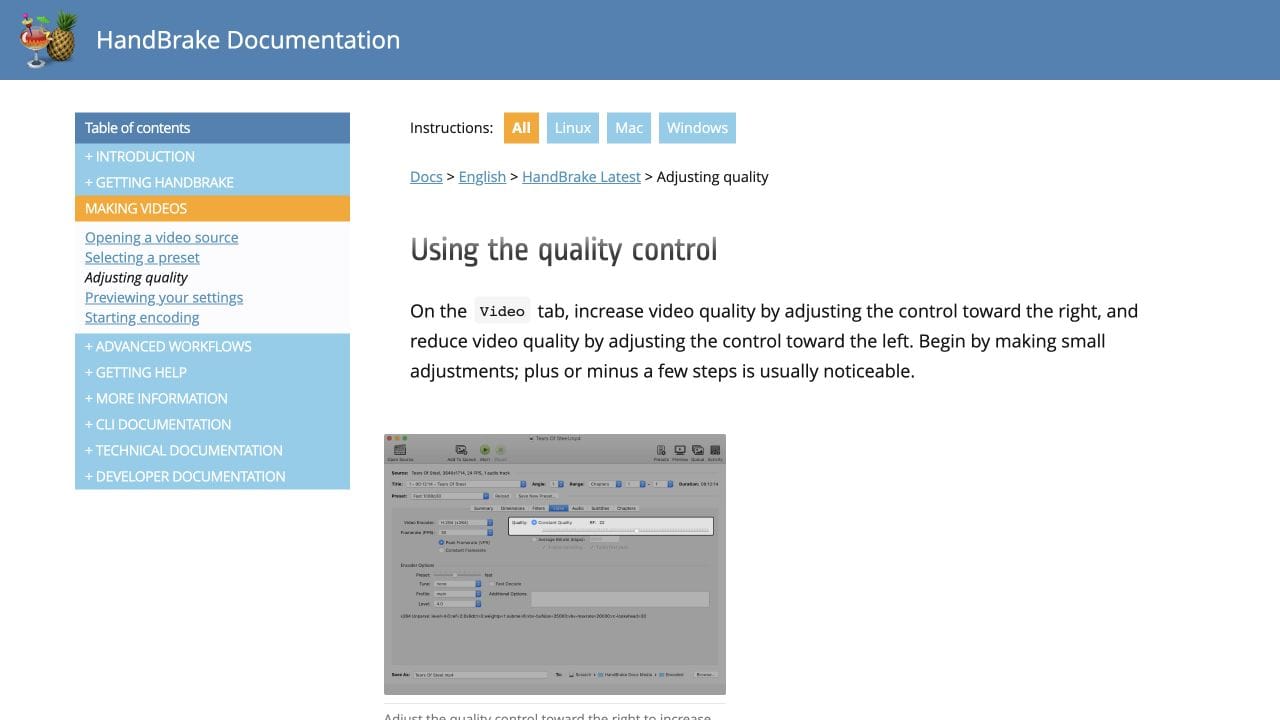
Constant Rate Factor, usually shortened to CRF, is a quality control used by encoders such as x264. For x264, a higher number means lower quality and usually fewer bytes. It is not a percentage, and the same number is not comparable across different encoders. HandBrake's quality guidance recommends making small adjustments and previewing short clips.
What did our small encoding test measure?
Three independent encodes of the same flower sample produced files from 182,578 to 852,626 bytes. Those are measured file sizes, not proof that all three look equally good.
We used the flower video in MDN's video example, with FFmpeg 7.1, the libx264 encoder and its medium preset. All outputs retained 960 by 540 pixels and approximately 29.97 frames per second, with a video duration of 5.005 seconds. Audio was omitted from every output to isolate the video comparison. The source is already compressed, so this is a demonstration of the method rather than a recommendation for mastering your work.
| x264 setting | Exact file size | Rounded size | Smaller than CRF 18 |
|---|---|---|---|
| CRF 18 | 852,626 bytes | 852.6 kB | Reference |
| CRF 24 | 375,693 bytes | 375.7 kB | 55.9% |
| CRF 30 | 182,578 bytes | 182.6 kB | 78.6% |
The cover shows a frame at two seconds from each output, with the measured sizes. A small still image cannot reveal every moving artefact. Do not choose CRF 30 simply because its row is smallest, or treat 55.9% as a promised saving on your videos.
For a reproducible video only check, this was the command structure. Replace 24 with 18 or 30 for the other candidates. The FFmpeg encoder reference documents the libx264 options.
ffmpeg -i flower-source.mp4 -map 0:v:0 -c:v libx264 -preset medium -crf 24 -an -movflags +faststart flower-crf-24.mp4How should you check quality before using the smaller file?
Watch the candidate at its intended display size and in motion, then inspect the sections most likely to reveal damage. A thumbnail comparison is only a first look.
- Product demonstrations: check labels, interface text and the moment a hand moves across the product.
- People: check faces, hair and edges during movement, rather than only a paused frame.
- Dark scenes: check gradients, block patterns and lost detail in the shadows.
- Sound and access: check speech, music, synchronisation and captions in the actual player.
Compare on a phone and a larger display that your audience uses. If viewers need to read a software menu, preserving that text matters more than achieving an impressive compression percentage. If the candidate fails, back off the compression and compare again. There is no single CRF number that guarantees the right result for every scene.
How do smaller files translate into delivery savings?
Use the amount actually delivered, not just the upload size. A host that prepares its own streaming versions may send a different file from the one you supplied.
For a deliberately simple calculation, suppose our complete video only files were delivered exactly once for each of 10,000 plays. CRF 18 would total about 8.526GB, while CRF 24 would total about 3.757GB. That is about 4.769GB less using decimal units. The calculation excludes audio, player assets, partial viewing, caching, retries and any host reencoding. These are projected totals from measured file sizes, not observed audience traffic.
On a fixed plan, those fewer bytes would leave more allowance; they would not necessarily refund any money. On a service charging by GB, apply the current applicable rate and minimum charge. On a service charging by minutes, use its minute rules instead. Keep those distinctions beside any savings figure you report.
For estimating a whole month's viewing, use our video bandwidth worksheet. The purpose here is to compare a controlled change, not to build a second monthly calculator.
Can you save delivery without reducing picture quality?
You can sometimes reduce unnecessary loading or playback while leaving the encoded picture alone. Start with video that starts automatically, repeats endlessly or loads on pages where people rarely watch it.
For a native HTML video element you control, preload="none" expresses a preference not to preload media. MDN explains that preload is a browser hint, and autoplay takes priority. Do not assume that adding the same attribute to a provider iframe controls the video inside it. Use the player's supported options and verify the requests.
Removing an unnecessary loop or changing to playback after a deliberate click may reduce unwanted viewing, but the result depends on the implementation and audience. Do not hide essential information behind a broken player to save bytes. Keep the page useful and preserve controls people need.
The official Chrome for Developers video below introduces the Network panel. Use it to compare the same page before and after a change, with the same viewing duration and cache conditions. Its interface is older; the current Network documentation supplies today's controls. Browser requests help explain the difference, while the provider's usage report remains the billing check.
Where does Vidreno Hosting fit?
Vidreno Hosting gives you an embedded player for your own website or app, with an included monthly bandwidth allowance. Optimisation can help that allowance go further. This is separate from Vidreno On Demand's public film purchases and rentals.
As checked on 7 October 2026, Free includes 20MB of storage and 50GB of monthly bandwidth and plays the original uploaded file. Standard costs $12 a month, includes 10GB of storage and 5TB of monthly bandwidth, and adds adaptive quality playback. The current Hosting plan details matter here: a smaller upload and a smaller delivered stream are not automatically the same thing.
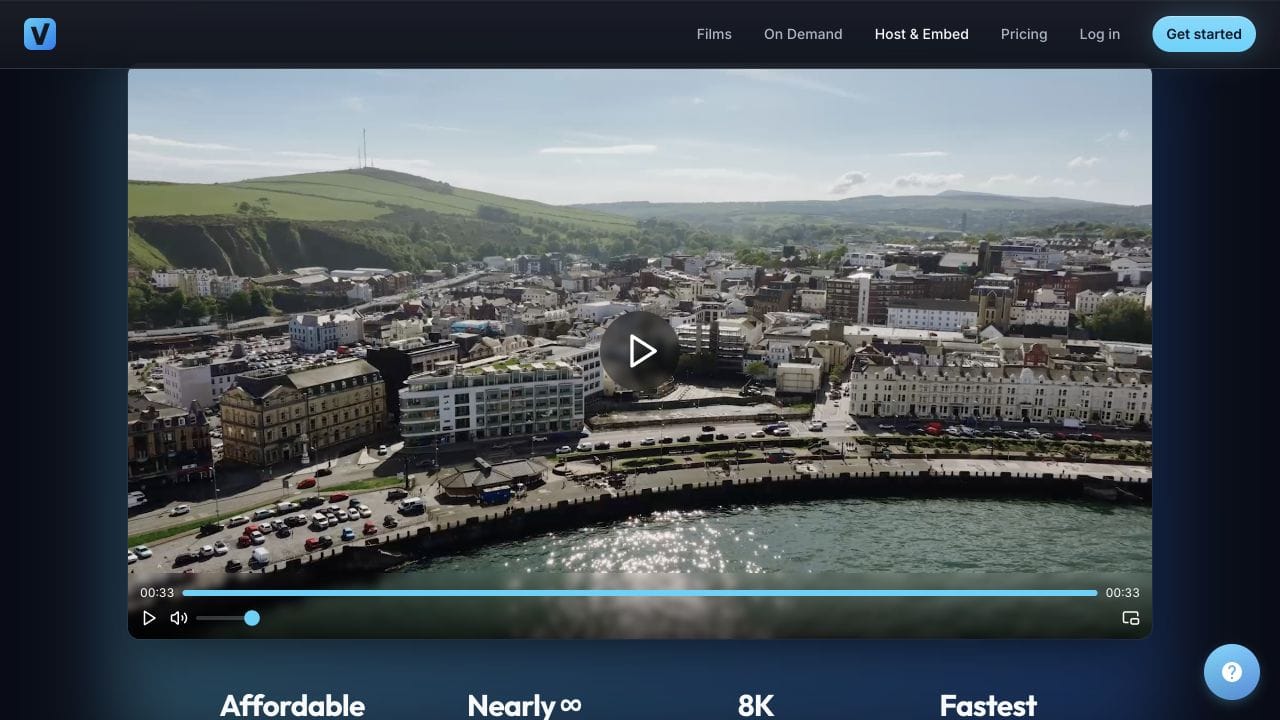
The player keeps the video prominent, and you can change its colours to suit your website. Try a suitably small clip on Free, inspect it on your own page and measure what is delivered. If you need adaptive versions or a larger library, compare the plan requirements before uploading everything. Included bandwidth can make repeated viewing affordable, but the allowance is finite.
Frequently asked questions
Does a smaller upload always mean less bandwidth?
No. The player may deliver versions prepared by the host rather than your original upload. Check the actual delivered media and compare usage under consistent conditions.
Should I always choose the highest CRF number?
No. With x264, increasing CRF trades away quality to reduce size. Choose a candidate that preserves the detail your viewer needs, then verify it in the intended player.
Can I use the same CRF number with another encoder?
Do not assume it means the same quality. Encoder scales differ. Treat a change of encoder as a new comparison and check playback compatibility too.
Will compression reduce a bill charged by viewing minutes?
Not necessarily. If the service bills the same delivered minutes after the change, fewer bytes alone may not lower the delivery charge. Check the billing definition.
Should I remove audio to save bandwidth?
Only when the video is meant to be silent. Removing speech, music or necessary explanation damages the product. Audio was omitted from every file in our narrow encoding experiment so that the video settings could be compared consistently.
What if my smaller video starts buffering?
Keep the original and compare the file, player, device and connection before drawing a conclusion. Our embedded video buffering guide covers that separate diagnosis.
Start with one representative clip and one controlled change. Keep the version that passes your quality check, then confirm the delivery result on the actual website. A lower number is only useful when the video still does its job.