To embed video in WordPress without making the page unnecessarily heavy, give the player a reserved space, defer videos farther down the page and avoid loading a whole gallery of players at once. Use Vidreno Hosting for the video delivery, then check what your WordPress page actually downloads before anyone presses play.
The important distinction is between loading the page and watching the film. A page can feel slow before playback starts, even when the video itself streams smoothly. This guide tackles that first visit. If playback keeps stopping after you press play, use our guide to diagnosing video buffering instead.
What makes a video embed slow down WordPress?
A video embed can add downloads and processing before the viewer watches anything. The page still has its own images, fonts and scripts to load, so the player is another piece of work competing for attention.
Google’s guidance on embedded content explains why loading embedded resources later can reduce that initial competition. It also helps to reserve the player’s space, so text does not move when the embed appears.
Hosting the video away from your WordPress server solves a different problem: who stores and delivers the video file. It does not make the player cost nothing to load. Our explanation of which bandwidth an embedded video uses covers that distinction.
Choose when each player should load
Load the main video when visitors need it, and defer optional videos until they are nearer to being useful. A product demonstration near the top of a page has a different job from the sixth interview in an archive.
| Where the video appears | A sensible starting point | What to check |
|---|---|---|
| The main reason to visit the page | A normal embed with reserved dimensions | How soon the player becomes usable |
| Farther down an article | An iframe with loading="lazy" | Whether requests are deferred on an actual first visit |
| A gallery of optional clips | Poster images that load a player on interaction | Keyboard access, image size and the delay after pressing play |
Lazy loading is a browser hint, not a promise to wait for a click. The browser may fetch an iframe before it enters the visible area. A player already near the top can load immediately even with that hint. MDN’s iframe reference describes how the attribute works.
Add a responsive Vidreno player in WordPress
Use a Custom HTML block when you want to control the iframe’s dimensions and loading attribute explicitly. You can keep the film on Vidreno Hosting while the player appears within your WordPress page.
Here is the practical route:
- Open the WordPress post or page in the block editor.
- Add a Custom HTML block. Typing
/htmlin a new paragraph is a quick way to find it. - Paste your Vidreno embed code. For a video farther down the page, use the responsive pattern below and replace the demonstration URL with your own embed URL.
- Preview the page, save it and reopen the public page while signed out. Confirm that the player is still present.
The current WordPress Custom HTML documentation shows the editing and preview controls. Their appearance can differ between WordPress versions. Accounts without permission to save unfiltered HTML may have iframe tags removed on save; if that happens, ask the site administrator to provide a permitted embed route.
<div style="max-width:720px;margin:0 auto">
  <iframe
    src="https://vidreno.com/embed/aaa59afb-8dd6-4238-8d40-68e9ccdbc618"
    width="960"
    height="540"
    title="Vidreno video demonstration"
    loading="lazy"
    style="display:block;width:100%;height:auto;aspect-ratio:16/9;border:0"
    allow="autoplay; fullscreen; picture-in-picture"
    allowfullscreen>
  </iframe>
</div>
The width and height describe a 16:9 player. The style lets that player fit a narrower article column while keeping its shape. Change the ratio if your video uses a different shape, and give the iframe a title that describes the actual video.
For the main video at the top of your page, remove loading="lazy" or use loading="eager" as your starting point. The allow attribute permits capabilities; it does not make this example play automatically.
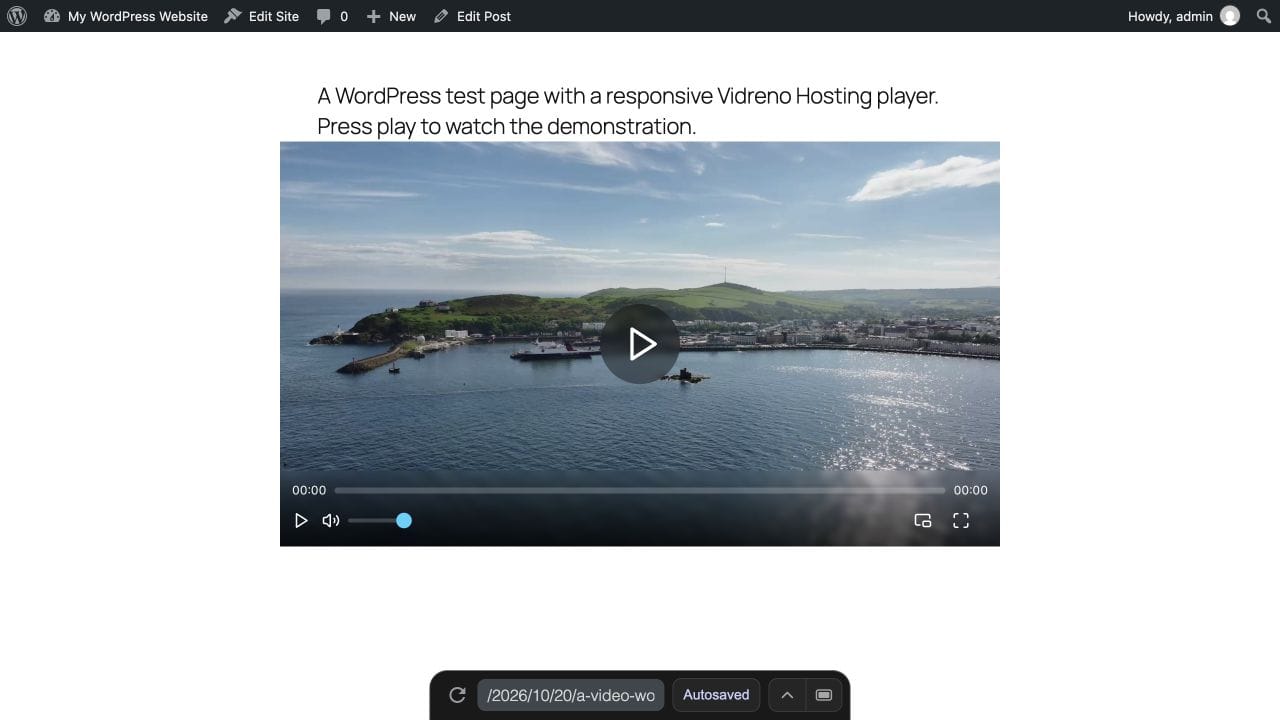
We saved this example in a WordPress Playground test site and checked that WordPress retained the iframe and its attributes. The screenshot shows the resulting player layout. This is an implementation check, not a speed comparison or a claim about your theme’s performance.
Vidreno Hosting is for videos embedded on your own website or app, with player colours you can adapt to your design. It is separate from Vidreno On Demand, which provides public film pages for purchases and rentals. For this WordPress setup, choose Vidreno Hosting.
When should you use a poster before loading the player?
Use a poster that opens the player on interaction when a video is optional and loading it immediately adds unnecessary work. Developers often call this a facade: a lightweight preview replaces the full embed until someone chooses to watch.
The useful saving comes from postponing the iframe itself. Hiding an already loaded iframe behind a picture does not achieve the same result. Keep the poster appropriately sized too, or the preview can become another oversized download.
In the short excerpt below, Imran Sayed explains the thumbnail first approach at 1:29 to 2:08. His example examines the overhead of an existing YouTube embed. The relevant lesson for a Vidreno WordPress page is deciding when to create the player, rather than copying a different hosting service into your site.
For your own implementation, the preview should have a real keyboard accessible button with a clear label such as “Play the studio tour”. Ask your developer to check focus after replacement and test what happens when the visitor presses play. Loading on interaction can add a wait at that moment, and automatic playback after replacement is not guaranteed.
Check the result on your own WordPress page
Compare the same page before and after changing the embed, using the same browser conditions. That tells you much more than a claim that one loading technique always saves a particular number of seconds.
- Open the public page while signed out, so you test the visitor’s page rather than the WordPress editor.
- Open your browser’s Network panel. For a controlled first visit comparison, disable the cache while the tools remain open and use the same connection setting for both runs.
- Reload without scrolling or pressing play. Note the requests, transferred data and when the main content becomes usable.
- Scroll towards the video, then press play. Check which requests appear at each stage.
- Repeat after changing just the embed behaviour. Also check the page on a phone and with a keyboard.
Chrome’s Network panel documentation explains the request list and cache controls. You can also run Lighthouse with consistent settings, but treat a single score as a clue rather than a guarantee. A lighter first load is not a success if visitors can no longer find or operate the video.
If the player overflows the article column, fix its responsive sizing. If the article jumps when the player arrives, check the reserved ratio. If the page is fine but playback stalls, return to the buffering checks rather than adding more loading plugins.
WordPress video loading questions
Does WordPress already lazy load video iframes?
WordPress introduced automatic iframe lazy loading in version 5.7 for eligible markup with dimensions. That is useful background, but themes, plugins and the final embed markup can affect your page. Inspect the saved iframe rather than assuming every video is deferred. The WordPress core announcement explains the original behaviour.
Do I need another plugin to embed a Vidreno video?
Not for the Custom HTML example shown here, provided your WordPress account can save the iframe. A gallery that loads players only after interaction may need additional theme code or a suitable implementation. Do not add that complexity just to display one ordinary video.
Will lazy loading make the video stream faster?
Lazy loading changes when the player starts loading. It does not increase a viewer’s connection speed or remove playback buffering. Keep page loading and streaming diagnosis separate.
Can I guarantee that an embedded video will not affect page speed?
No. A working player needs resources. The practical goal is to load those resources when they are useful, keep the layout steady and measure the result on your actual page.
Start with one Vidreno player in your WordPress article, check it as a visitor and build from there. Our guide to embedding video without ads covers the wider choice of a clean player for your own site.