You do not need a player library just to put a video into your app. A small component is often enough. The part worth getting right is the boundary between your page and the player: which URL goes where, which settings belong to React and which belong to the video host.
We will use Vidreno Hosting for the working example. This is video embedded in your own website or browser app. Vidreno On Demand is the separate service for public film purchases and rentals.
Start with a reusable React iframe component
A Vidreno embed URL belongs in an iframe, because it opens a complete player rather than an MP4 file. Copy your video's generated embed URL and pass it to the component below.
export function HostedVideo({ src, title, eager = false }) {
  return (
    <iframe
      src={src}
      title={title}
      loading={eager ? 'eager' : 'lazy'}
      allow="autoplay; fullscreen; picture-in-picture; encrypted-media"
      allowFullScreen
      style={{
        display: 'block',
        width: '100%',
        aspectRatio: '16 / 9',
        border: 0,
      }}
    />
  );
}
The component uses ordinary JSX. Notice allowFullScreen and aspectRatio: React uses these spellings, while the style value is a JavaScript object. The React DOM reference explains this convention.
Give title a useful description such as “How our booking tool works”. Keep the permissions that your generated embed needs. The MDN iframe reference explains both the title and the permission attributes.
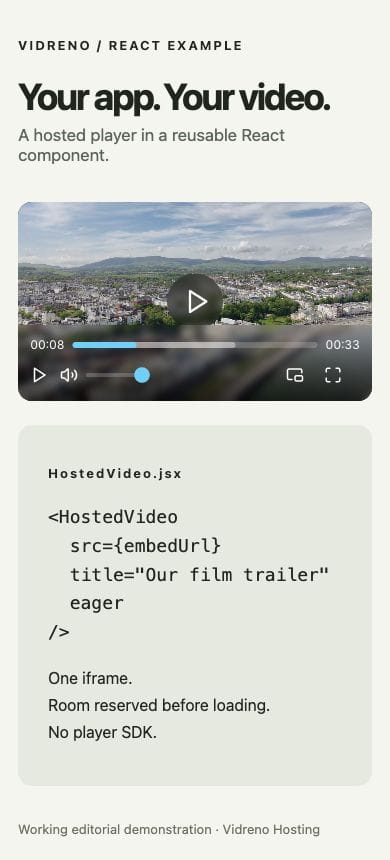
Here is the component with Vidreno's public demonstration video. Replace this demonstration URL with your own generated URL when you build your page.
<HostedVideo
  src="https://vidreno.com/embed/aaa59afb-8dd6-4238-8d40-68e9ccdbc618"
  title="Vidreno coastal video demonstration"
  eager
/>We compiled the component with React 19.3.1 and checked it in a desktop browser. The demonstration played and its playback time advanced. At a 390 pixel viewport, the iframe measured 354 pixels wide and stayed inside the page. That is a browser layout check, not a claim that we tested every phone.
Use the same component in Next.js
A static iframe can stay in a Next.js Server Component. Rendering that element does not require React state, browser APIs or a client side player package.
Save the component as app/ui/HostedVideo.jsx, then import it into your page. This example assumes the usual App Router folder structure.
// app/page.jsx
import { HostedVideo } from './ui/HostedVideo';

export default function Page() {
  return (
    <main>
      <h1>Watch our product demonstration</h1>
      <HostedVideo
        src="https://vidreno.com/embed/aaa59afb-8dd6-4238-8d40-68e9ccdbc618"
        title="Vidreno coastal video demonstration"
        eager
      />
    </main>
  );
}
The Next.js video guide also describes fetching an embed URL inside an asynchronous Server Component. If your page already knows the URL, keep the simpler version above. We checked the Next.js pattern against the framework documentation; the running demonstration in this article is React, not a separately tested Next.js deployment.
What does Suspense actually wait for?
Suspense can show a placeholder while a compatible component waits for data, such as an embed URL from your content system. It does not automatically wait for an iframe's video to buffer.
In this.stephie's framework walkthrough, the section from 0:45 to 1:24 shows the URL loading skeleton and the React DevTools switch for inspecting the fallback. The useful lesson is to test the loading state deliberately, rather than hoping a slow connection happens during a demo.
Only add that extra boundary if something inside can actually suspend. The React Suspense reference explains supported data sources and why a fetch started in an effect does not automatically activate a Suspense fallback.
Reserve the player's space before it loads
Give the iframe a width and aspect ratio so the surrounding page does not depend on the player arriving to establish its height. Our example uses 16:9, but a portrait video needs a different shape.
The eager prop is a deliberate choice. Use it for the main demonstration already visible near the top of the page. Leave it off for a player further down, where lazy loading can defer the iframe until it approaches the viewport.
A gallery is another case. Rather than mounting twenty active players at once, show useful preview images and load the selected video when a visitor chooses it. Measure your actual page before claiming a speed improvement. If playback itself stalls after starting, use our separate guide to diagnosing video buffering.
When should you use a native video element?
Use video when you have a direct media file and want to manage the browser player yourself. Do not paste a Vidreno embed page URL into a video source: an HTML player page is not a media file.
export function FileVideo() {
  return (
    <video
      controls
      playsInline
      preload="none"
      poster="/images/demo-poster.jpg"
      style={{ width: '100%', aspectRatio: '16 / 9' }}
    >
      <source src="/videos/demo.mp4" type="video/mp4" />
      <track
        kind="captions"
        src="/captions/demo-en.vtt"
        srcLang="en"
        label="English"
        default
      />
    </video>
  );
}
These are example file paths, not supplied assets. In a Next.js project, files placed in public are addressed from the site root. Supply your own video, poster and accurate WebVTT captions. The MDN video reference explains the media attributes and track support.
The tradeoff is responsibility. You now choose the files, captions and delivery arrangement. A single MP4 source does not create an adaptive streaming service. Vidreno Hosting keeps the managed player and hosting together; its current paid plans include adaptive quality playback, while the Free plan plays the uploaded original file.
Keep autoplay and player styling in the right place
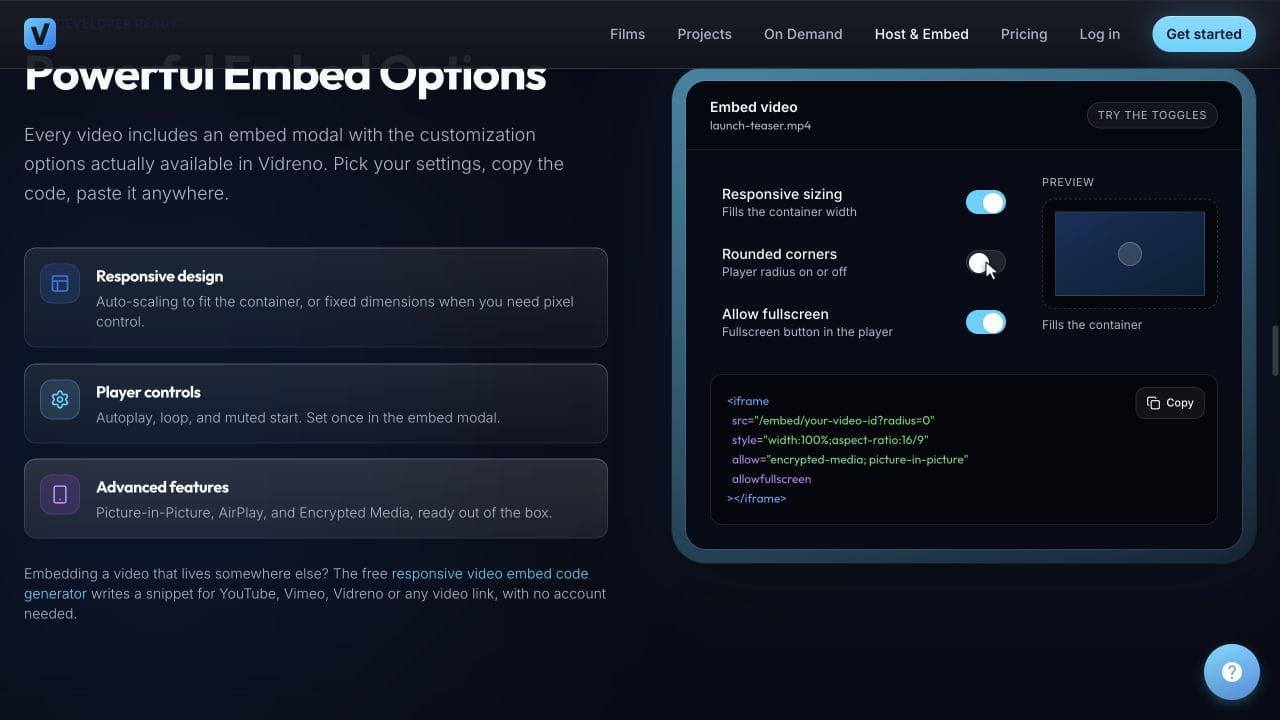
Configure a hosted player's behaviour through its supported embed settings. Adding muted to an iframe does not mute the video inside it, and allow="autoplay" grants permission rather than ordering playback to start.
For a native React video element, the relevant props are autoPlay, muted and playsInline. Browser policy still decides what can start automatically. Chrome's autoplay guidance distinguishes muted playback from playback with sound. Our autoplay troubleshooting guide covers the diagnosis in more detail.
Likewise, your page's CSS controls the iframe box, not the controls inside a different origin. Use Vidreno's supported player colour settings to match your brand. Keep enough contrast that Play, volume and other controls remain easy to spot.
Check the integration before launch
- Open the page as a visitor and check that the intended video appears.
- Press Play, pause and seek. Check sound and fullscreen if you enable them.
- Resize the page and confirm the player stays inside its container.
- Navigate away and back in your app. Check that the player is not remounted on every unrelated state update.
- Test keyboard access and captions for your actual video.
- Check your production Content Security Policy permits the intended iframe origin. Do not disable the policy to make a test pass.
Keep the video's identity stable. A React key that changes on every render can recreate the iframe and reset playback. Use a stable video ID when rendering a list, and avoid generating a different source string unless the selected video or settings actually change.
Frequently asked questions
Do I need a React video player package for Vidreno?
No. Vidreno's hosted player can be embedded with an iframe. A package is only necessary if your application has additional requirements that justify it.
Can I control the hosted video with a React ref?
A ref to the iframe is not a ref to its internal video element. Do not assume you can call the video's play method across origins. Use only an explicitly supported player integration for that kind of control.
Does the free plan include adaptive streaming?
No. The Hosting page currently says the Free plan plays the uploaded original file. Paid plans include adaptive quality playback. Check the current Hosting plans against your file size and delivery needs.
Does embedding move delivery onto my app server?
The iframe loads Vidreno's player and delivery resources separately from your app page. Our guide to embedded video and website bandwidth explains what each service delivers.
Start with one small video, a clear Play control and the reusable component. Once that works in your own app, add only the behaviour your visitors need.