Quick answer
If an embedded video plays when you press Play but will not start by itself, check the browser's autoplay rules first. Start silently, keep a visible Play button, and check that the player inside the iframe has actually been told to autoplay. An iframe permission alone does not start a video or guarantee that sound is allowed.
You don't need to change hosting providers just because a browser refuses unexpected sound. First separate a playback permission problem from a video that cannot load. That saves you from changing the wrong thing.
What does the symptom tell you?
| What you see | What to check next |
|---|---|
| Pressing Play works, automatic playback does not | Muted start, browser policy and the player's autoplay setting |
| The player never appears | Whether the embed was inserted and allowed to load |
| Pressing Play also fails | The media address, access permissions and supported format |
| Playback starts, then repeatedly stops to load | Delivery and buffering, rather than autoplay alone |
Make one change at a time. Keep a note of the browser, device, whether you pressed anything first and the exact error. “It doesn't work on mobile” leaves too many possibilities open.
Why does autoplay work for you but not a new visitor?
Chrome can permit sound after someone interacts with a site, or after sufficient previous media engagement on desktop. Your familiar browser may therefore behave differently from a visitor's browser. Muted playback has a much more permissive policy. The Chrome autoplay policy explains these conditions.
Test the landing page before clicking anywhere, then test its Play control. Don't use your own successful sound autoplay as proof that every visitor will hear the introduction. The sensible default for a product demonstration is either silent motion with an obvious sound control, or a good poster and a deliberate press of Play.
What should a native HTML video look like?
If you control a native HTML video element, this is a small starting point. Replace the example paths with your own real media and poster files.
<video id="demo" autoplay muted playsinline controls
  poster="/images/demo.jpg">
  <source src="/videos/demo.mp4" type="video/mp4">
</video>
muted silences the initial playback. playsinline requests playback within the page, and controls keeps the normal player controls available. See the MDN video element reference for these attributes.
These are Boolean attributes. Writing autoplay="false" still includes the attribute; remove it to turn that request off. The same trap applies to muted="false". If a framework creates the video, inspect the resulting element rather than trusting how the template looks.
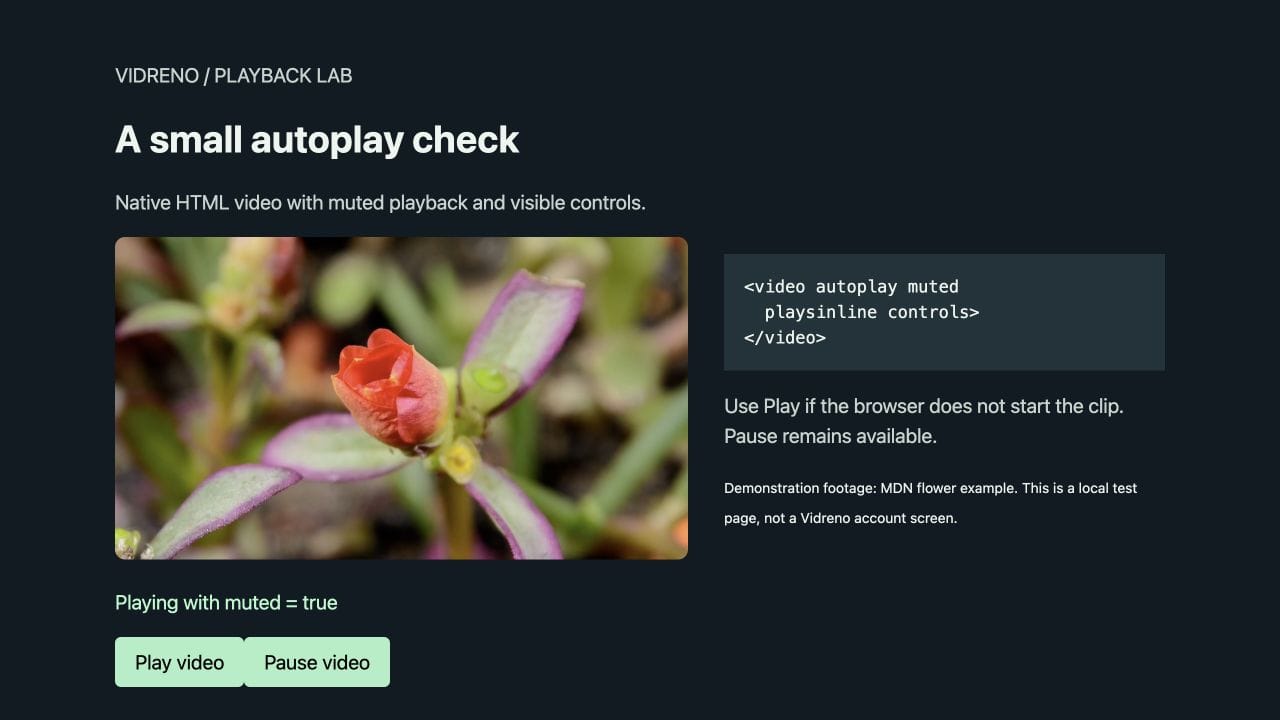
In that desktop browser check, the muted clip started without a click. Its playback time advanced, and the separate Pause and Play controls stopped and resumed it. That verifies this small example in the tested browser. It does not establish behaviour on every phone or prove that audible autoplay will be accepted.
How do you handle a rejected play request?
If your page starts playback with JavaScript, handle the result. A request to play is not proof that playback started. This example belongs after the video element above. It keeps a button available for a visitor to try again.
<button id="start" type="button">Play video</button>
<p id="message" aria-live="polite"></p>
<script>
const video = document.querySelector('#demo');
const message = document.querySelector('#message');
async function start() {
  try {
    await video.play();
    message.textContent = '';
  } catch (error) {
    message.textContent = error.name === 'NotAllowedError'
      ? 'Press Play to start the video.'
      : 'The video could not start. Please try again.';
  }
}
document.querySelector('#start').addEventListener('click', start);
start();
</script>
NotAllowedError points towards permission to play. Other failures need their own diagnosis; don't label every rejected request “autoplay blocked”. The MDN play method reference describes the Promise and possible exceptions. Our local example used the same request and button pattern, with an extra status display and Pause button for observation.
What changes when the video is inside an iframe?
There are two layers: the page containing the iframe and the player inside it. Adding autoplay or muted to the outer iframe is not the same as adding those attributes to its video element.
Use the hosting provider's supported embed settings for automatic, muted playback. Separately, an iframe can use allow="autoplay" to delegate permission where the browser permits it. A restrictive parent Permissions Policy can still prevent playback. The MDN autoplay guide explains that policy layer.
Don't copy another provider's URL parameters into your own embed. They are player specific. Also keep any existing permissions the player needs when changing its allow attribute. If the browser accepts a manual press of Play, you already have a useful fallback while you investigate the automatic start.
What should you check on an iPhone?
For a native video, check muted playback and playsinline, then test while the element is visible. WebKit's explanation of its inline video policy describes visibility conditions for attribute based autoplay and why unmuting without a user action can pause playback.
A narrow desktop window is a layout check, not an iPhone test. Open the actual published page in Safari on a real device, then repeat from any app browser your audience commonly uses. Keep Play available if a particular browser or user preference declines the automatic start.
Would a short video walkthrough help?
This WebStylePress tutorial demonstrates the HTML autoplay setup. Use it to see the attributes in context, alongside the browser documentation above. It covers native HTML video, rather than Vidreno account settings.
Watch the HTML autoplay walkthrough on YouTube if the embed is unavailable.
Where does Vidreno fit?
Vidreno Hosting puts your videos inside your own website or app. Its clean player leaves plenty of room for the picture, and you can change its colours to suit your site. Choose a clear contrast for the controls so a visitor who needs to press Play can find it immediately.
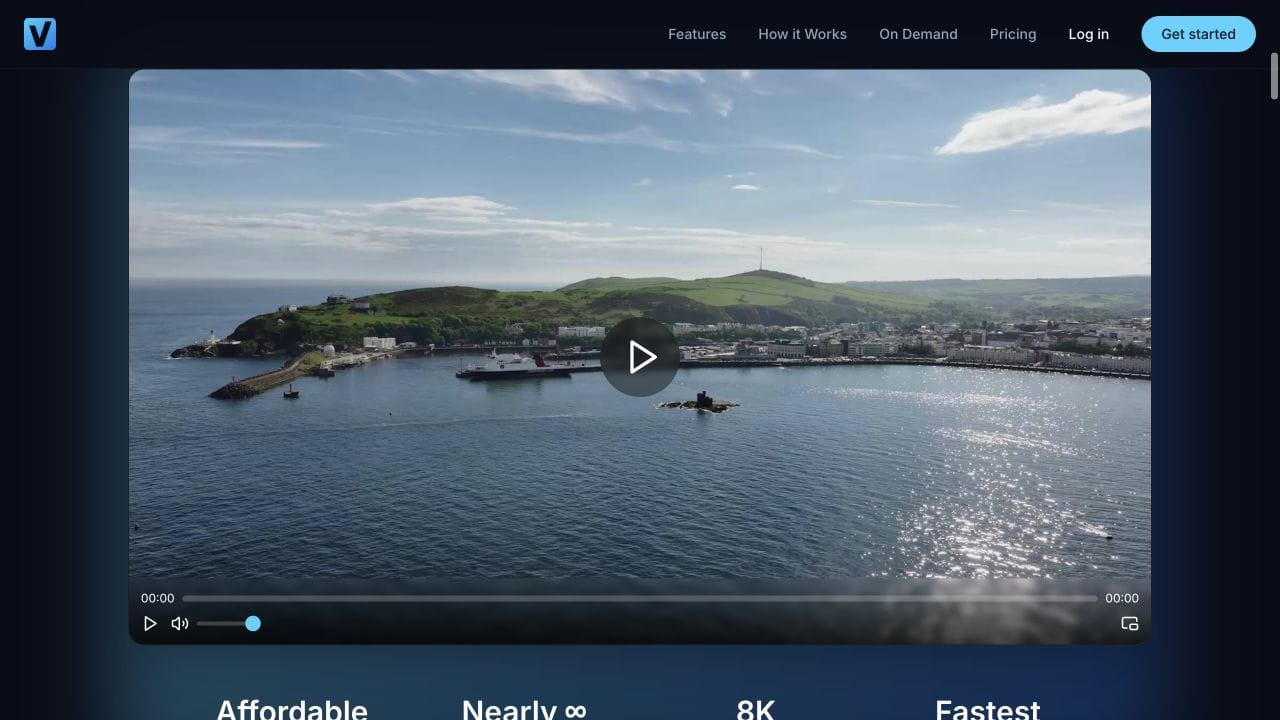
You can try the player on our homepage. Vidreno's Free plan includes 20MB of storage and 50GB of monthly bandwidth, so a suitably small test clip can get you started without a hosting subscription charge. Check the current Hosting plans against your file sizes and audience.
If you enable automatic playback across busy pages, include that behaviour in your monthly video bandwidth estimate. For the wider provider decision, our affordable video hosting comparison explains the different cost models. Neither a larger allowance nor a different host removes the browser's authority over playback.
Frequently asked questions
Does setting autoplay guarantee that a video starts?
No. It requests automatic playback. The browser still applies its policy, and the media must be available and playable.
Can I force sound to start for every new visitor?
Don't design around that promise. Let the visitor choose sound through an obvious control and make the opening useful even when silent.
Does preload give permission to autoplay?
No. Loading media and permission to start playback are different decisions. A downloaded video can still be waiting for a press of Play.
Should I remove controls to make a background video cleaner?
Keep an accessible way to pause motion and start playback when needed. Decide where those controls live before removing the native controls.
Why is a poster image still worth adding?
It gives the video a useful starting view while playback waits. Pick a frame that makes sense before any movement or sound begins.
Is a successful desktop check enough?
No. Check the actual page and embed on the devices and browsers your visitors use. Record what you tested so a layout preview does not become an unsupported compatibility claim.
Start with one small video and a reliable Play control. Once that works on your page, add silent autoplay where it helps the visitor. Vidreno gives you a tidy player and a free place to begin that check.