
You can waste an afternoon changing embed code when the problem is a busy wireless connection. You can also blame the connection when one broken media segment stops every viewer at the same moment. Keep the clip and page the same, change one thing at a time, and write down what happens.
Is it buffering, an autoplay problem or a slow page?
This guide is about playback that stalls after it has started. If pressing Play works but the video will not start automatically, use our autoplay troubleshooting guide. If the player itself takes a long time to appear, investigate the page and player loading first.
Even a visible pause is not always a download problem. A browser may have video data available but struggle to decode or display it smoothly. The aim is to separate those cases before changing your hosting plan.
What should you try first?
| Comparison | What the result suggests | Next check |
|---|---|---|
| Same clip at a lower quality, if available | Improvement points towards delivery capacity or device workload | Compare media request timing and dropped frames |
| Same device on another connection | Improvement points towards the original network or its route to the host | Repeat without other large transfers |
| Another device on the same network | One device failing points towards that device or browser | Compare browser version, extensions and playback errors |
| Another clip in the same player | Only one clip failing points towards its media or encoding | Record whether the failure repeats at the same timestamp |
| The same embed on a simple test page | Improvement points towards the original page or integration | Check scripts that recreate, pause or reload the player |
These comparisons narrow the investigation; none proves the cause by itself. A lower quality can reduce both the amount downloaded and the work needed to decode it. A second network changes the route as well as the connection speed.
Why can a fast internet connection still buffer?
A speed test measures a particular route at a particular moment. Your video comes from a different destination, and the connection may vary during playback. Shared wireless traffic, other downloads and an unstable route can all leave the player waiting for its next piece of media.
Think in seconds of playable video. If a player has four seconds ready and the next piece takes longer than that to arrive, it can run out. In a simple illustrative case, a four second segment carrying 8 megabits per second contains about 32 megabits. At a steady 4 megabits per second of usable transfer, downloading it takes about eight seconds before overhead. Repeated segments at those rates cannot sustain normal playback. Those figures are an example, not a Vidreno measurement.
Adaptive streaming can select a different quality as conditions change, where the host and player support it. It still needs suitable versions and a working delivery path. Cloudflare’s adaptive bitrate explanation describes the principle. Do not assume every embedded MP4 has that behaviour.
How can you see what the browser is waiting for?
On desktop Chrome, open DevTools before reproducing the problem. The Network panel tutorial explains the request log. Keep recording while you press Play and note the playback timestamp when the stall occurs.
- Look for failed requests and their status codes.
- Compare request durations with the point where playback stops.
- Check Media requests, but also Fetch/XHR or All. Some streaming players fetch their segments through JavaScript.
- Open a relevant request to inspect its timing and response information.
A 403 response suggests an access problem; a 404 suggests a missing resource. A successful response can still arrive too slowly. A long request can also be normal for continuous delivery, so interpret it alongside the player’s buffer rather than treating duration alone as proof.
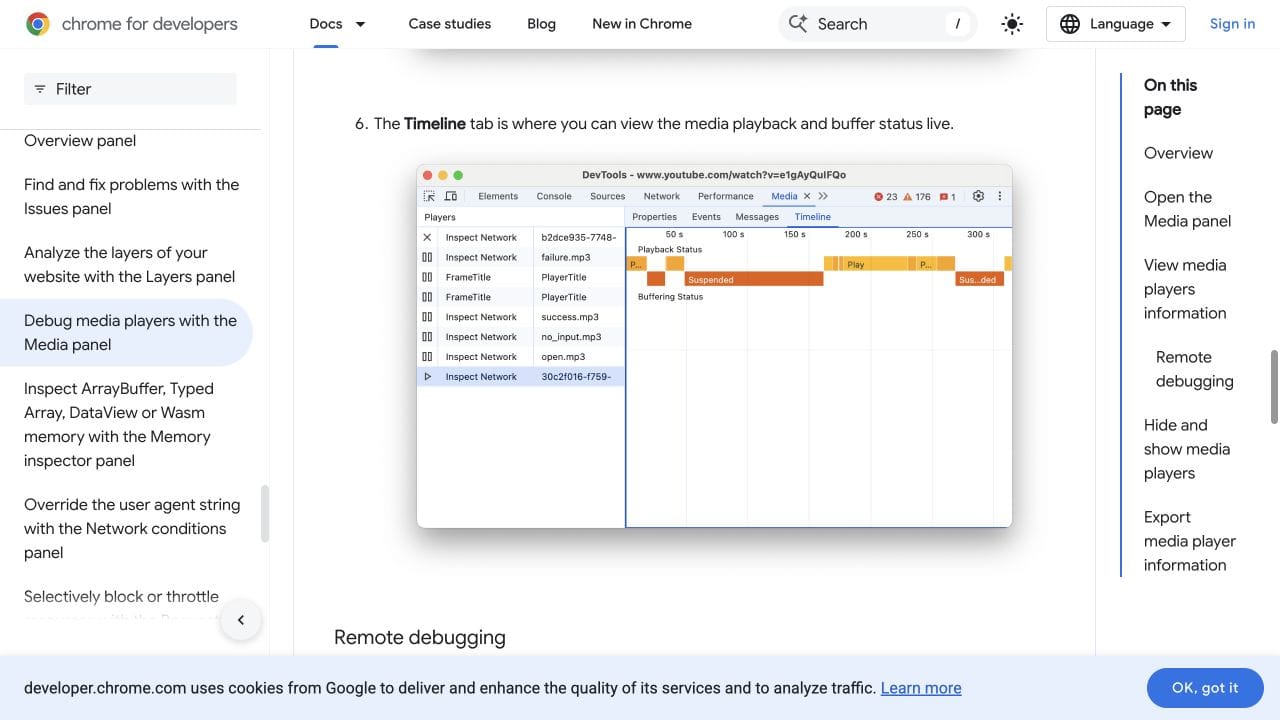
The separate Chrome Media panel shows player properties, events, messages and a playback timeline. Open it through DevTools’ More tools menu, select the relevant player and inspect the timeline around the pause.
For a native video you control, buffered exposes downloaded time ranges. Compare the range containing the current playback position with currentTime; the final range in the list may belong to a different part of the clip after seeking. MDN’s buffered time ranges guide explains the distinction.
The waiting event indicates a temporary lack of data for playback. It is a useful clue, not a diagnosis of your internet provider. See the MDN event reference. A parent page cannot freely inspect the video inside an iframe from another origin; use the provider’s supported diagnostics or browser tools.
What if the buffer looks healthy but the picture stutters?
Check the device side. Compare another browser, close other demanding applications and try a lower playback quality. Look for a pattern where one device struggles while others play the same clip on the same network.
Where available, getVideoPlaybackQuality() reports total and dropped video frames. Compare how the counters change over the problem interval. A rising dropped frame count is useful evidence, but it does not identify a single cause on its own. The MDN playback quality reference describes the API.
If only one file breaks at the same place, check the original and the versions prepared for delivery. Replacing your whole player is a large change when the issue might be confined to one clip.
Can a video walkthrough help with the request log?
This Chrome for Developers tutorial introduces the Network panel. The request inspection section starts around 4:46, and filtering starts around 6:05. The interface is older, so use the current documentation above for menu details. Its purpose here is to help you collect evidence about requests, not to promise a universal buffering fix.
Watch the Network panel walkthrough on YouTube.
Would moving to a video host solve it?
A dedicated host can simplify delivering video inside your website or app. It is a sensible option when your current setup struggles to serve your files, but confirm the cause with a representative clip before moving your library.
Vidreno Hosting gives you a clean embedded player, with colours you can change to fit your site. You can try a small clip on the Free plan and compare the actual experience on the page and devices your audience uses.
As checked on 1 October 2026, Free includes 20MB of storage and 50GB of monthly bandwidth. Choose a clip that fits the storage allowance and see the current Hosting plans before using a larger library. Try the homepage player, or read the Vidreno and Vimeo Hosting comparison if you are evaluating a move.
What should you send to support?
Send the public page URL, affected video, time of the test with timezone, browser and device, approximate location, and the playback timestamp where it stalls. Add the results of your connection and device comparisons, plus relevant error messages. That gives someone a reproducible starting point.
Keep private playback tokens, cookies and account information out of public screenshots. If support needs a diagnostic export, review it and share it through their private support channel.
Frequently asked questions
Does a loading spinner prove my connection is slow?
No. It can accompany slow delivery, failed media requests or other player problems. Compare another connection and inspect the requests around the stall.
Why does a lower quality play smoothly?
It may require less data and less decoding work. Check the network and device evidence before deciding which improvement explains the result.
Why does it always stop at the same second?
A repeatable timestamp makes the file or a particular media segment worth investigating. Confirm that the pattern persists across devices and connections before drawing a conclusion.
Will preloading the whole video fix buffering?
It can increase waiting and transfer data viewers never watch. Browser loading behaviour also varies. Investigate delivery first instead of treating more preload as a universal solution.
Should I clear the cache after every change?
Use a controlled comparison and record whether the cache was used. Repeatedly changing cache state can make results harder to compare and hide the original problem.
Can I test with just a short sample?
A sample is useful for checking the player and integration. Also test the section and quality that cause trouble in the original video; a simple clip may never reproduce the issue.
Start with one clear comparison, then follow the evidence. If you want to evaluate Vidreno on your own site, begin with a small clip and keep your test conditions consistent.